build.gradle
```groovy plugins { id 'org.springframework.boot' version '2.1.3.RELEASE' id 'java' } apply plugin: 'io.spring.dependency-management' group = 'com.attacomsian' version = '0.0.1-SNAPSHOT' sourceCompatibility = '1.8' repositories { mavenCentral() } dependencies { implementation 'org.springframework.boot:spring-boot-starter-thymeleaf' implementation 'org.springframework.boot:spring-boot-starter-web' } ``` I used [Spring Initializr](https://attacomsian.com/blog/scaffolding-spring-boot-application) to generate the above [Gradle](https://attacomsian.com/blog/install-gradle-on-ubuntu) configuration file. It is an easier and quicker way to create a Spring Boot application. ## Configure Properties Before we start the actual work, we need to configure two things: 1. The location on the server where the uploaded files are stored. 2. The largest size of the file uploaded in a single HTTP multipart request. Spring Boot automatically enables `multipart/form-data` requests, so we do not need to do anything.application.properties
```properties # max file size spring.servlet.multipart.max-file-size=10MB # max request size spring.servlet.multipart.max-request-size=10MB # files storage location (stores all files uploaded via REST API) storage.location=./uploads ``` In the above properties file, we have two multipart settings: 1. `spring.servlet.multipart.max-file-size` is set to 10MB, which means total files size cannot exceed 10MB. 2. `spring.servlet.multipart.max-request-size` sets the maximum `multipart/form-data` request size to 10MB. In simple words, we cannot upload files larger than 10MB using the above configuration. ## Enable Configuration Properties In our `application.properties` file, we define the storage location. Now let's create a POJO class called `StorageProperties` and annotate it with `@ConfigurationProperties` to automatically bind the properties declared in the `application.properties` file.StorageProperties.java
```java package com.attacomsian.uploadfiles.storage; import org.springframework.boot.context.properties.ConfigurationProperties; @ConfigurationProperties(prefix = "storage") public class StorageProperties { private String location; public String getLocation() { return location; } public void setLocation(String location) { this.location = location; } } ``` Notice the `prefix= "storage"` attribute in the above annotation. It instructs `@ConfigurationProperties` to bind all the properties that start with the `storage` prefix to their corresponding attributes of the POJO class when the application is started. The next step is to enable the `ConfigurationProperties` feature by adding the `@EnableConfigurationProperties` annotation to our main configuration class.Application.java
```java package com.attacomsian.uploadfiles; import com.attacomsian.uploadfiles.storage.StorageProperties; import org.springframework.boot.SpringApplication; import org.springframework.boot.autoconfigure.SpringBootApplication; import org.springframework.boot.context.properties.EnableConfigurationProperties; @SpringBootApplication @EnableConfigurationProperties(StorageProperties.class) public class Application { public static void main(String[] args) { SpringApplication.run(Application.class, args); } } ``` ## Files Upload Controller Let's now create a controller class called `FileController` for handling uploading and downloading files via RESTful web services. It also defines a route to list all the uploaded files.FileController.java
```java package com.attacomsian.uploadfiles.controllers; import com.attacomsian.uploadfiles.commons.FileResponse; import com.attacomsian.uploadfiles.storage.StorageService; import org.springframework.core.io.Resource; import org.springframework.http.HttpHeaders; import org.springframework.http.ResponseEntity; import org.springframework.stereotype.Controller; import org.springframework.ui.Model; import org.springframework.web.bind.annotation.*; import org.springframework.web.multipart.MultipartFile; import org.springframework.web.servlet.support.ServletUriComponentsBuilder; import java.util.Arrays; import java.util.List; import java.util.stream.Collectors; @Controller public class FileController { private StorageService storageService; public FileController(StorageService storageService) { this.storageService = storageService; } @GetMapping("/") public String listAllFiles(Model model) { model.addAttribute("files", storageService.loadAll().map( path -> ServletUriComponentsBuilder.fromCurrentContextPath() .path("/download/") .path(path.getFileName().toString()) .toUriString()) .collect(Collectors.toList())); return "listFiles"; } @GetMapping("/download/{filename:.+}") @ResponseBody public ResponseEntityFileResponse.java
```java package com.attacomsian.uploadfiles.commons; public class FileResponse { private String name; private String uri; private String type; private long size; public FileResponse(String name, String uri, String type, long size) { this.name = name; this.uri = uri; this.type = type; this.size = size; } // getters and setters removed for the sake of brevity } ``` important The `FileController` class uses the `StorageService` interface for storing and resolving files in the file system. It is the main class for handling files in our example. We'll define these classes in the next section. > **Note:** On the production server, avoid storing the uploaded files in your application file system. You might lose all files if your application server is damaged. It also makes it very difficult to move the application from one server to another. Therefore, it is a good practice to use external storage like AWS S3 for storing all the uploaded files. ## Storage Service Finally, it is time to create a storage service called `StorageService` for our controller to connect with a storage layer (the file system in our case). This task involves several classes. We'll define these classes one by one. The first step is to define an interface called `StorageService` as shown below:StorageService.java
```java package com.attacomsian.uploadfiles.storage; import org.springframework.core.io.Resource; import org.springframework.web.multipart.MultipartFile; import java.nio.file.Path; import java.util.stream.Stream; public interface StorageService { void init(); String store(MultipartFile file); StreamFileSystemStorageService.java
```java package com.attacomsian.uploadfiles.storage; import org.springframework.beans.factory.annotation.Autowired; import org.springframework.core.io.Resource; import org.springframework.core.io.UrlResource; import org.springframework.stereotype.Service; import org.springframework.util.FileSystemUtils; import org.springframework.util.StringUtils; import org.springframework.web.multipart.MultipartFile; import javax.annotation.PostConstruct; import java.io.IOException; import java.io.InputStream; import java.net.MalformedURLException; import java.nio.file.Files; import java.nio.file.Path; import java.nio.file.Paths; import java.nio.file.StandardCopyOption; import java.util.stream.Stream; @Service public class FileSystemStorageService implements StorageService { private final Path rootLocation; @Autowired public FileSystemStorageService(StorageProperties properties) { this.rootLocation = Paths.get(properties.getLocation()); } @Override @PostConstruct public void init() { try { Files.createDirectories(rootLocation); } catch (IOException e) { throw new StorageException("Could not initialize storage location", e); } } @Override public String store(MultipartFile file) { String filename = StringUtils.cleanPath(file.getOriginalFilename()); try { if (file.isEmpty()) { throw new StorageException("Failed to store empty file " + filename); } if (filename.contains("..")) { // This is a security check throw new StorageException( "Cannot store file with relative path outside current directory " + filename); } try (InputStream inputStream = file.getInputStream()) { Files.copy(inputStream, this.rootLocation.resolve(filename), StandardCopyOption.REPLACE_EXISTING); } } catch (IOException e) { throw new StorageException("Failed to store file " + filename, e); } return filename; } @Override public StreamStorageException.java
```java package com.attacomsian.uploadfiles.storage; public class StorageException extends RuntimeException { public StorageException(String message) { super(message); } public StorageException(String message, Throwable cause) { super(message, cause); } } ``` The `FileNotFoundException` exception is thrown when the file requested by the user does not exist on the server.FileNotFoundException.java
```java package com.attacomsian.uploadfiles.storage; import org.springframework.http.HttpStatus; import org.springframework.web.bind.annotation.ResponseStatus; @ResponseStatus(HttpStatus.NOT_FOUND) public class FileNotFoundException extends StorageException { public FileNotFoundException(String message) { super(message); } public FileNotFoundException(String message, Throwable cause) { super(message, cause); } } ``` Notice the `@ResponseStatus(HttpStatus.NOT_FOUND)` annotation above. This annotation ensures that Spring Boot responds with a 404 (Not Found) HTTP status instead of 501 (Internal Server Error) when the exception is thrown. ## Running & Testing the Application We are almost done with our backend development. Since we created RESTful APIs to upload and download files, we can test them via Postman. Let's run the application by typing the following command in your terminal from the root directory of the project: ```bash $ ./gradlew bootRun ``` Once the application is started, you can access it at http://localhost:8080. ### 1. Upload Single File 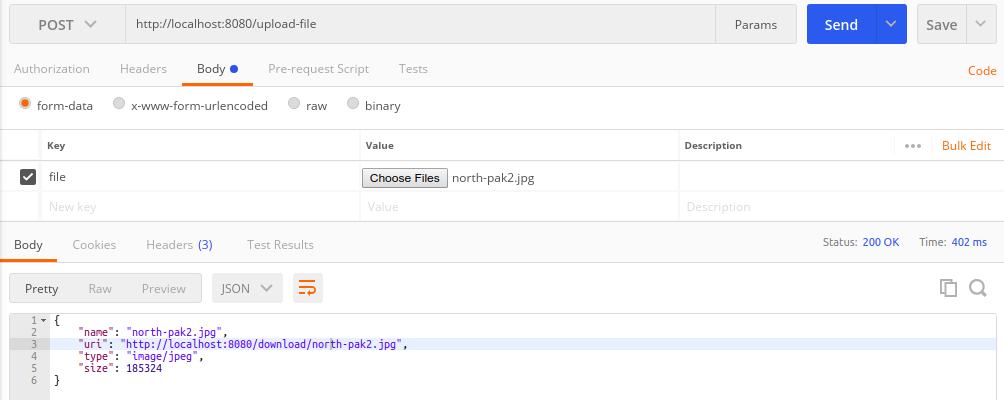 ### 2. Upload Multiple Files 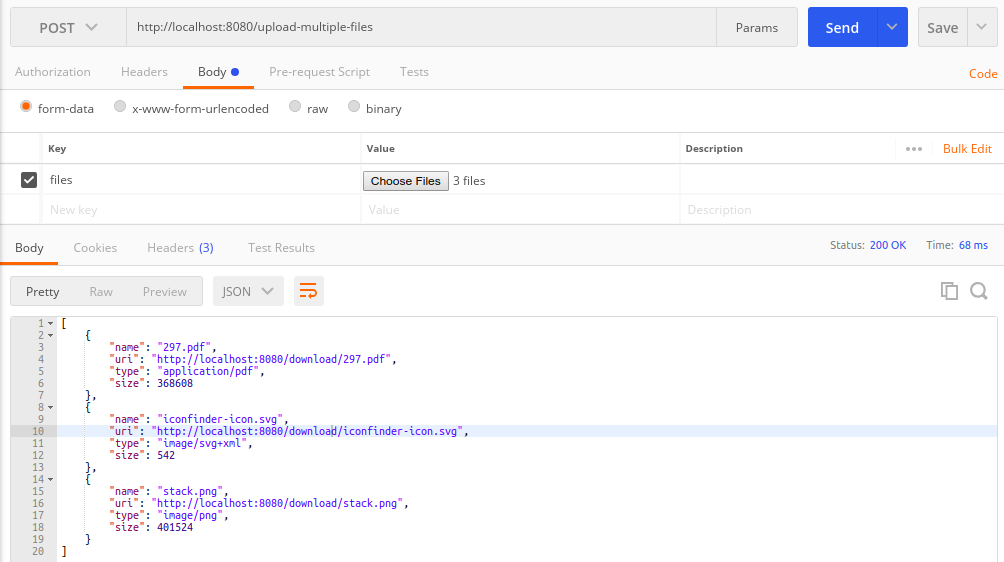 ### 3. Download File 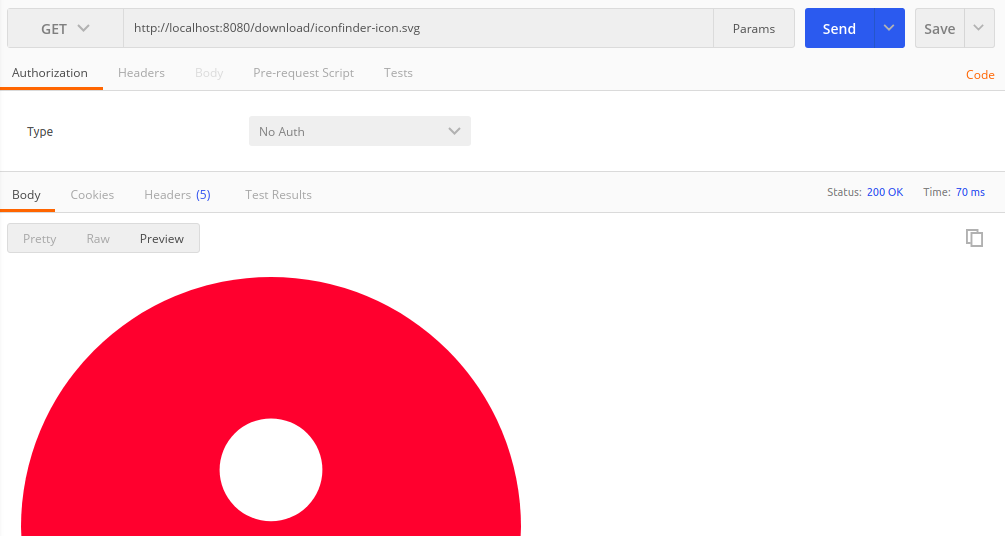 ## HTML Web Form We have tested our RESTful APIs, and they are working fine. It is now time to create a simple front-end interface in [HTML & Thymeleaf](https://attacomsian.com/blog/spring-boot-thymeleaf-form-handling) that lists all the files uploaded so far. It will also allow users to upload files directly from the browser.listFiles.html
```markup